No Coding Required: How to Put Claude Cowork to Work as Your AI Assistant
No coding required. Learn how to use Claude Cowork, Anthropic's AI agent tool, to organize files, draft reports, and automate tasks — all through plain chat.

No Coding Required:
How to Put Claude Cowork
to Work as Your AI Assistant
From organizing files to drafting reports — one chat message is all it takes.
Anyone can get started in under five minutes.
1. AI Agents — Are They Really for Everyone?
"I heard AI agents can write code, organize files, and handle all kinds of tasks automatically."
You've probably come across this claim. But the moment you try to look it up, you run into words like terminal and CLI — and suddenly the whole thing feels like it's meant for developers only. I've been there too. One glance at a command-line tutorial and I'd close the tab.
That changed in January 2026 when Anthropic announced Claude Cowork. The one-sentence pitch is this:
An AI agent you can control through plain conversation — no code, no terminal, no technical background needed.
That's not an exaggeration. You type a message, and Claude handles the rest.
In this post I'll walk through what Claude Cowork is, how to get it running, and what you can actually do with it — explained so that anyone can follow along. Five minutes from now you could have your first AI assistant up and running.
2. What Exactly Is Claude Cowork?
The one-line summary
Claude Cowork is an AI agent built directly into the Claude Desktop app, announced by Anthropic on January 12, 2026. You point it at a folder on your computer, and Claude can read, edit, and create files inside that folder — all by telling it what you want in plain language.
How is it different from Claude Code?
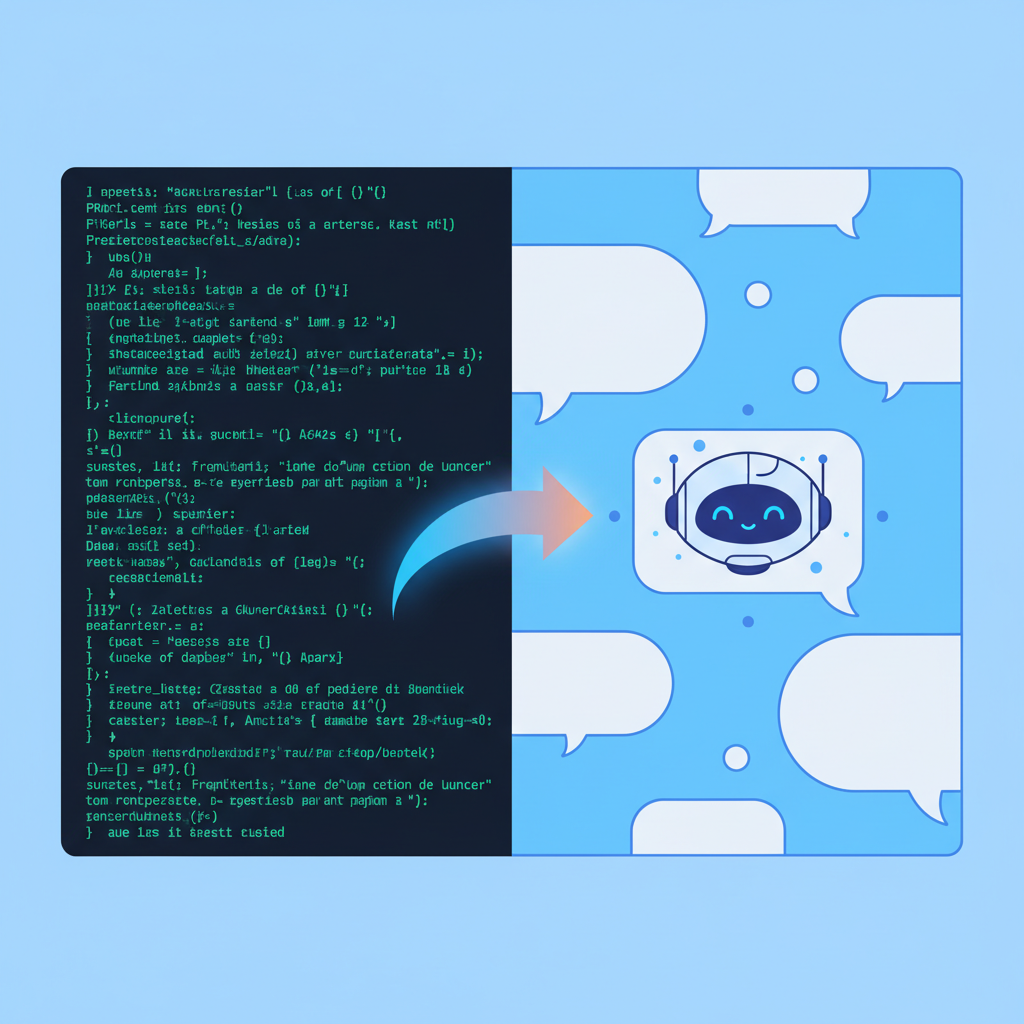
"Isn't there already something called Claude Code? Are these the same thing?" Fair question. The short answer: they're built for completely different audiences.
| Feature | Claude Code | Claude Cowork |
|---|---|---|
| Target user | Developers | General users |
| Interface | Terminal (CLI) | Claude Desktop chat |
| Installation | Requires npm install | Built into Claude Desktop |
| Primary use | Writing / running code | File management / documents / organization |
| Technical skill required | High | Minimal (nearly zero) |
Think of Claude Code as a professional chef's knife set — powerful, but only useful if you know how to handle it. Claude Cowork is more like a microwave: less intimidating, immediately practical, and designed for everyone.
Who can use it?
Claude Cowork is available through the Claude Desktop app on macOS. Availability by subscription tier rolled out as follows:
- Max subscribers ($100–200/month) — available from January 12, 2026
- Pro subscribers ($20/month) — available from January 16, 2026
- Team / Enterprise — available from January 23, 2026
At $20/month on the Pro plan, having an AI assistant on call is a pretty reasonable deal.
3. Getting Started in 5 Minutes — From Install to First Task
There's no complex setup involved. The whole process comes down to four steps.
Install Claude Desktop
Download and install the Claude Desktop app on macOS. If you already have it, make sure you're on the latest version.
Enter Cowork Mode
Open the app, start a new conversation, and select Cowork mode. It's a single button — that's all there is to it.
Choose a Working Folder
Specify the folder you want Claude to access — your Downloads folder, Documents, a project directory, wherever makes sense for the task at hand.
Give Your First Instruction
Type your request in plain language. Claude will put together a plan, execute it step by step, and let you know when it's done.
Claude can only see what's inside the folder you designate. Anything outside that folder stays completely untouched.
4. What Can It Actually Do? — 5 Real-World Use Cases
Here's where it gets concrete. Five practical things you can do with Claude Cowork right now.

Use Case 1: Auto-organize your Downloads folder
Open your Downloads folder. Chances are it's a mess of files from the last two years. Try telling Claude this:
Claude creates the folders, sorts the files, and cleans everything up — without you touching a single file manually.
Use Case 2: Turn scattered notes into a report draft
Meeting notes, random memos, ideas jotted down across different files — we've all got them. When you need to pull it together:
Claude reads each file, extracts the key points, and assembles them into a logically structured document. You just do the final polish.
Use Case 3: Extract table data from screenshots into a spreadsheet
Got screenshots of slides or web pages with tables you need to work with? Skip the manual retyping:
Claude reads the text in the images and outputs a clean spreadsheet. A task that would take 30 minutes by hand is done in under a minute.
Use Case 4: Analyze drafts and surface what's ready to publish
This one comes from a real example. Developer Simon Willison asked Claude Cowork to analyze 46 unfinished blog post drafts. Claude then:
- Searched for files modified in the past three months
- Compared them against already-published posts
- Recommended the top three drafts closest to publication-ready
If you've got a backlog piling up, having an AI tell you "these three are basically done" is genuinely useful.
Use Case 5: Handle multiple tasks in parallel
Claude Cowork can queue up several tasks and run them concurrently.
No need to wait for one job to finish before starting the next. Hand off multiple tasks at once — just like you would with an actual assistant.
5. Security Considerations You Should Know
The more capable a tool is, the more important it is to use it thoughtfully. Anthropic has published official guidance on this, and it's worth keeping in mind.

What is prompt injection?
In simple terms: a maliciously crafted file could potentially influence Claude's behavior. For example, if a document contains hidden instructions like "delete this file," Claude might follow them. This is a known risk category called prompt injection, and Anthropic is actively working to mitigate it.
3 principles for safe use
- Restrict access to sensitive files — Don't designate folders containing financial data, passwords, or personal information as your Cowork working directory.
- Only work with files you trust — Don't add files from unknown sources into your Cowork folder.
- Review Claude's action plan — Before Claude starts executing, it shows you what it intends to do. Check that it matches your expectations.
Follow these three rules and you'll be in good shape. Claude Cowork operates in a sandboxed environment, so it can't reach outside the folder you've specified — there's no risk of system-wide impact.
6. Wrapping Up — Hire Your AI Assistant Today
Here's the whole thing in three bullet points:
- Claude Cowork is an AI agent you control entirely through conversation — no coding, no terminal, no setup complexity.
- It handles file organization, report drafting, data extraction, and more — things you can put to use immediately.
- Install Claude Desktop and you're ready to go in under five minutes.
"AI agents are a developer thing" — that era is over. Claude Cowork means anyone can have a capable AI assistant working for them.
Try It Right Now
Open Claude Desktop and type this into the chat window:
That one line might be the start of a very different way of working.